SharePoint recycle bin
Deleted a file in SharePoint? Find it in the recycle bin in seconds.
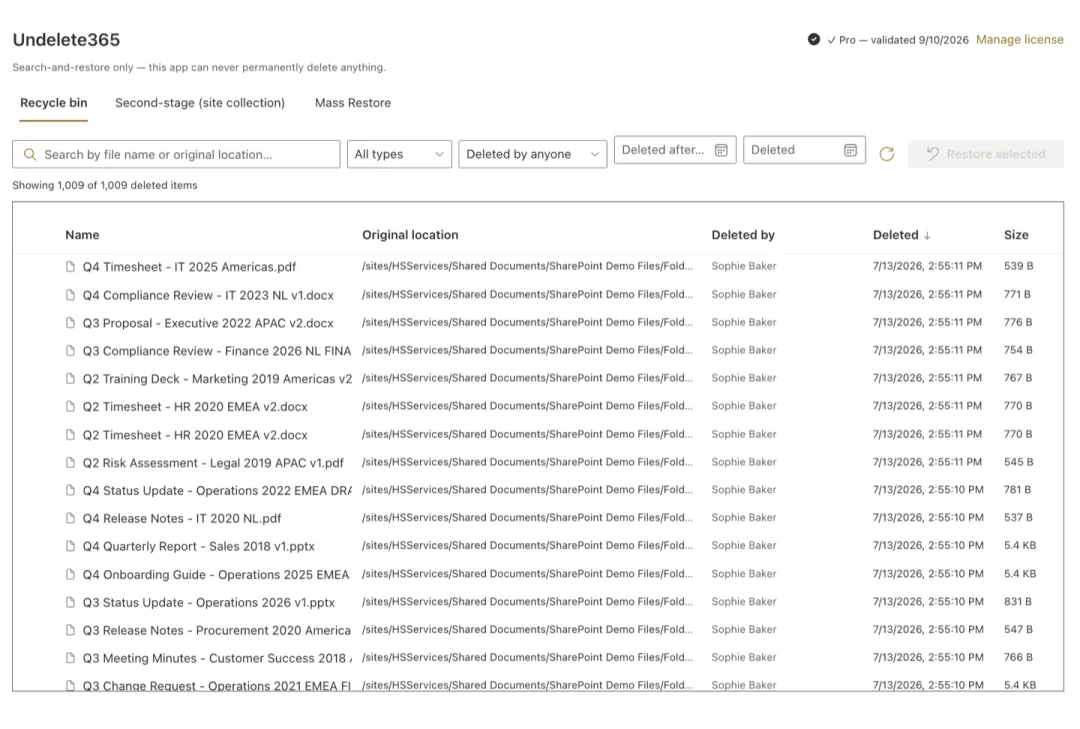
SharePoint keeps deleted files for 93 days, but its recycle bin has no search box: just one long list, newest first. Undelete365 adds a search box and filters to that same bin, so you type part of the name and the file is there.
First: is your file still recoverable?
Three quick checks before you install anything. If all three are yes, the file can be put back.
Deleted less than 93 days ago?
SharePoint keeps deleted items for 93 days in total across both recycle bin stages. After that they are gone for good, and only a backup that was already running can help.
Look in the site's recycle bin
Not in the Windows Recycle Bin. Since May 2026, files deleted in the cloud skip your desktop bin and Mac Trash entirely. Open the SharePoint site, then Recycle bin in the left menu or under Site contents.
Not there? Check the second stage
If someone emptied the first bin, items move to the second-stage recycle bin at the bottom of that page. Only a site collection admin can open it. That's SharePoint's rule, not ours.
Then find it. Two ways.
Both work. The difference is how many rows you're scrolling through.
SharePoint's own recycle bin
Free, built in
- Open the recycle bin. Everything deleted on the site is in one list, newest first.
- Scroll back to roughly when it was deleted, or sort a column and scan.
- Tick the file and click Restore.
Fine if the bin holds a few dozen items.
Painful at a few thousand, when all you remember is "it had budget in the name".
Undelete365
Search free · restore €249 once per tenant
- An admin uploads one package to the App Catalog. It takes about a minute and requests no API permissions.
- Add the web part to any SharePoint page and type part of the file name. Filter by type or location, across both bin stages.
- The free version shows each match's name, location and size, so you can restore it in SharePoint's own bin. With Pro, tick it and restore it right there.
Found in seconds, however big the bin is.
Lost more than one file?
A sync accident, a leaver's cleanup script, a compromised account. When thousands of files are gone, Pro's Mass Restore puts back everything one person deleted between two dates, under one folder. A mandatory dry run shows you the exact count first. It handles SharePoint's throttling, and if you close the tab, re-running the same filter picks up where you left off. How Mass Restore works
Built so it can't make things worse
You're installing something on the day files went missing, so here is exactly what it can do.
API permissions requested. You can see this on the App Catalog upload screen before you approve.
Code paths that can permanently delete anything. There is no "empty bin" button because the code doesn't exist, and a checker script in every download proves it.
Identity it runs as: yours. People only see and restore what they could already restore by hand, and every restore is in the Microsoft 365 audit log under their name.
What it costs
€0 free forever
- Search and filter by name, location and type, across both bin stages
- See each match's name, original location and size
- No form, no email, no licence check
€249 once, per tenant
- Restore one file or fifty, right from the search results
- Filter by who deleted it and by date range
- Mass Restore with dry run, resume and a CSV failure report
- Every site and every user in the tenant. No subscription.
Find the file first. Decide later.
Searching is free, so you can confirm your file is in the bin before you spend anything.